VM Lifecycle Management
Simple virtual machine creation, automated OS installation, and application pre-configuration
VM Lifecycle Management
Infinibay simplifies virtual machine management by automating complex workflows and guiding you through each step. Create production-ready VMs in minutes, not hours.
Simple VM Creation
Creating a new virtual machine is as simple as clicking "New" and following a guided 6-step wizard. No need to manually configure XML files, deal with storage pools, or understand libvirt internals.
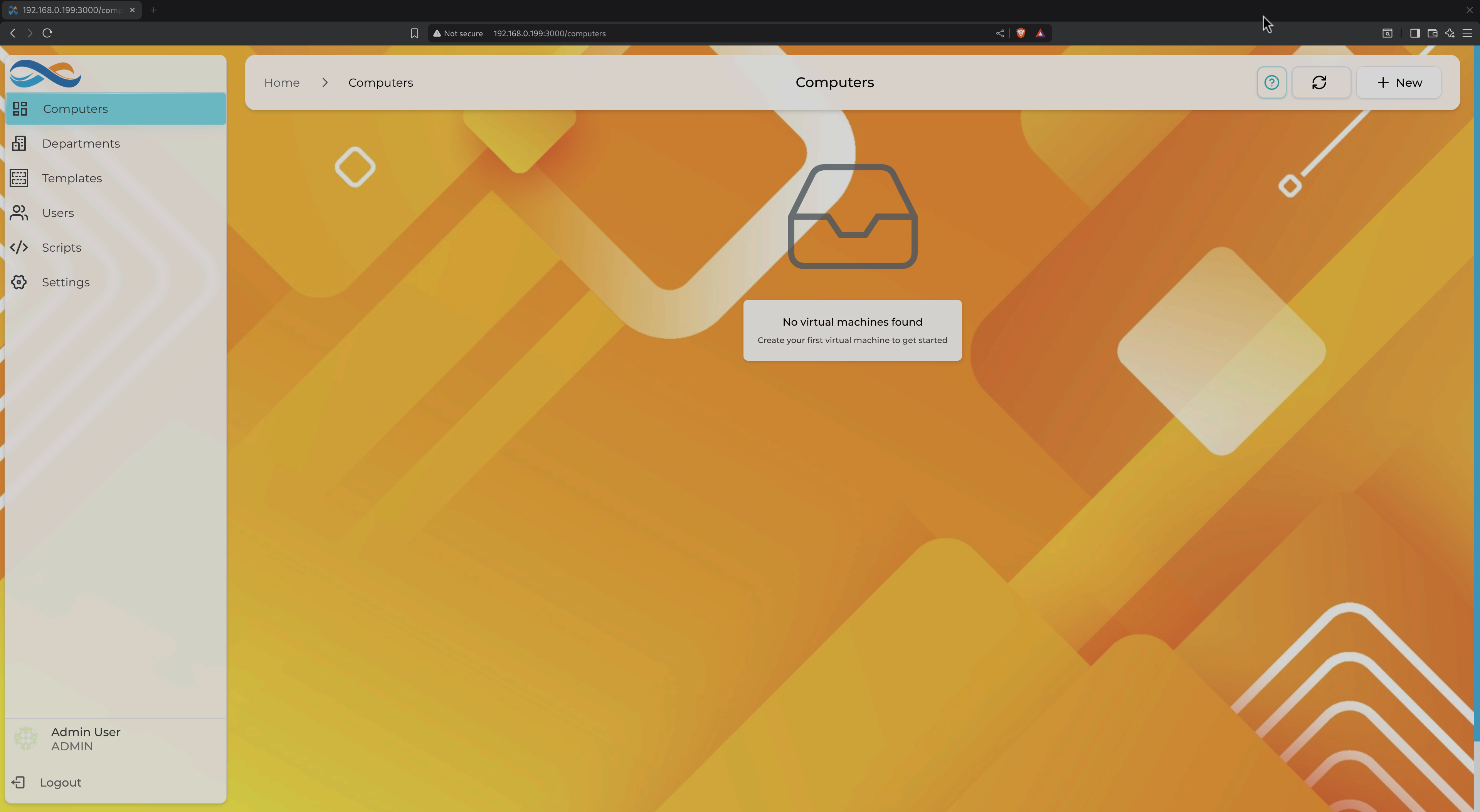
The clean, empty state view prompts you to create your first VM
Guided 6-Step Wizard
The VM creation wizard breaks down the complex process into manageable steps:
Step 1: Basic Information
Define the fundamentals: machine name, department assignment, and user credentials.
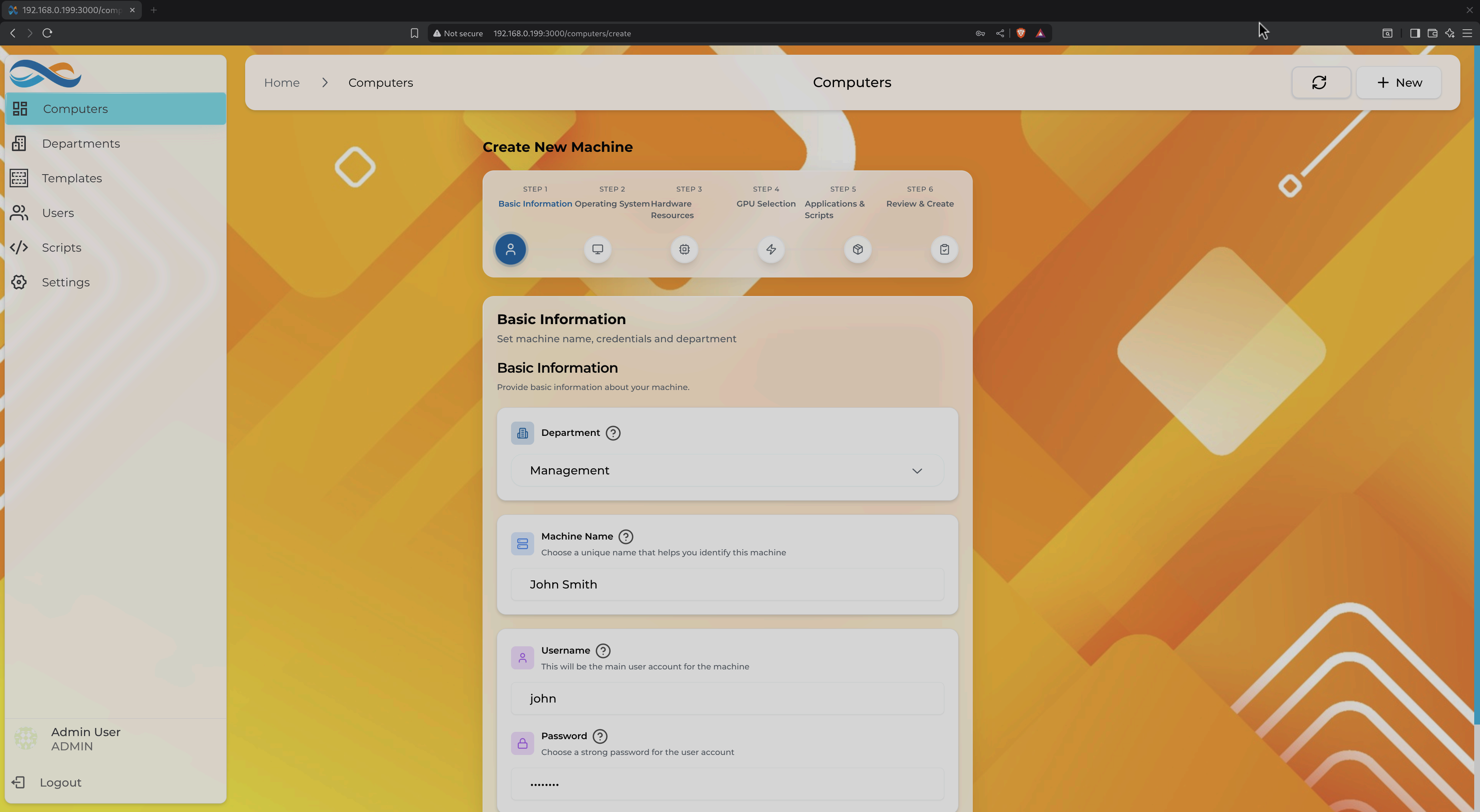
- Department: Organize VMs by team or project (inherits firewall rules)
- Machine Name: Human-readable identifier
- Username & Password: Automatically configured during OS installation
Step 2: Operating System Selection
Choose your operating system with automatic ISO detection. Infinibay supports:
- Windows 10/11: Latest versions with automatic drivers
- Ubuntu: LTS and latest releases
- Fedora: Community-driven cutting edge
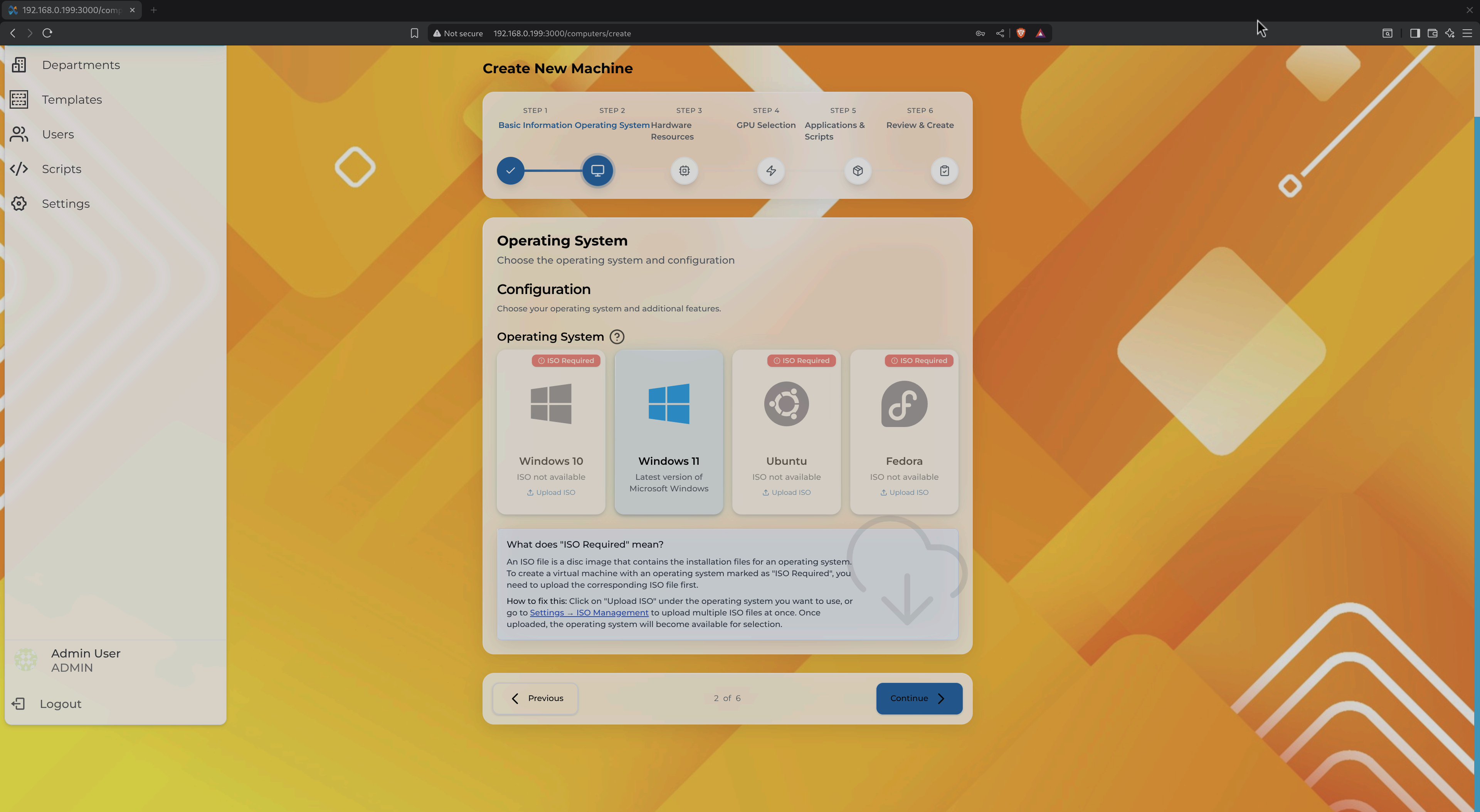
What does "ISO Required" mean?
For Windows and some other operating systems, you need to upload an ISO file first. Infinibay can't redistribute Windows ISOs due to licensing, but once uploaded, the system handles everything else automatically.
Tip: Upload ISOs in Settings → ISO Management before creating VMs. Once uploaded, all OS options become available for selection.
Step 3: Hardware Resources
Configure CPU, memory, and storage—or use pre-configured templates for common use cases.
Custom Hardware: Full control over resource allocation
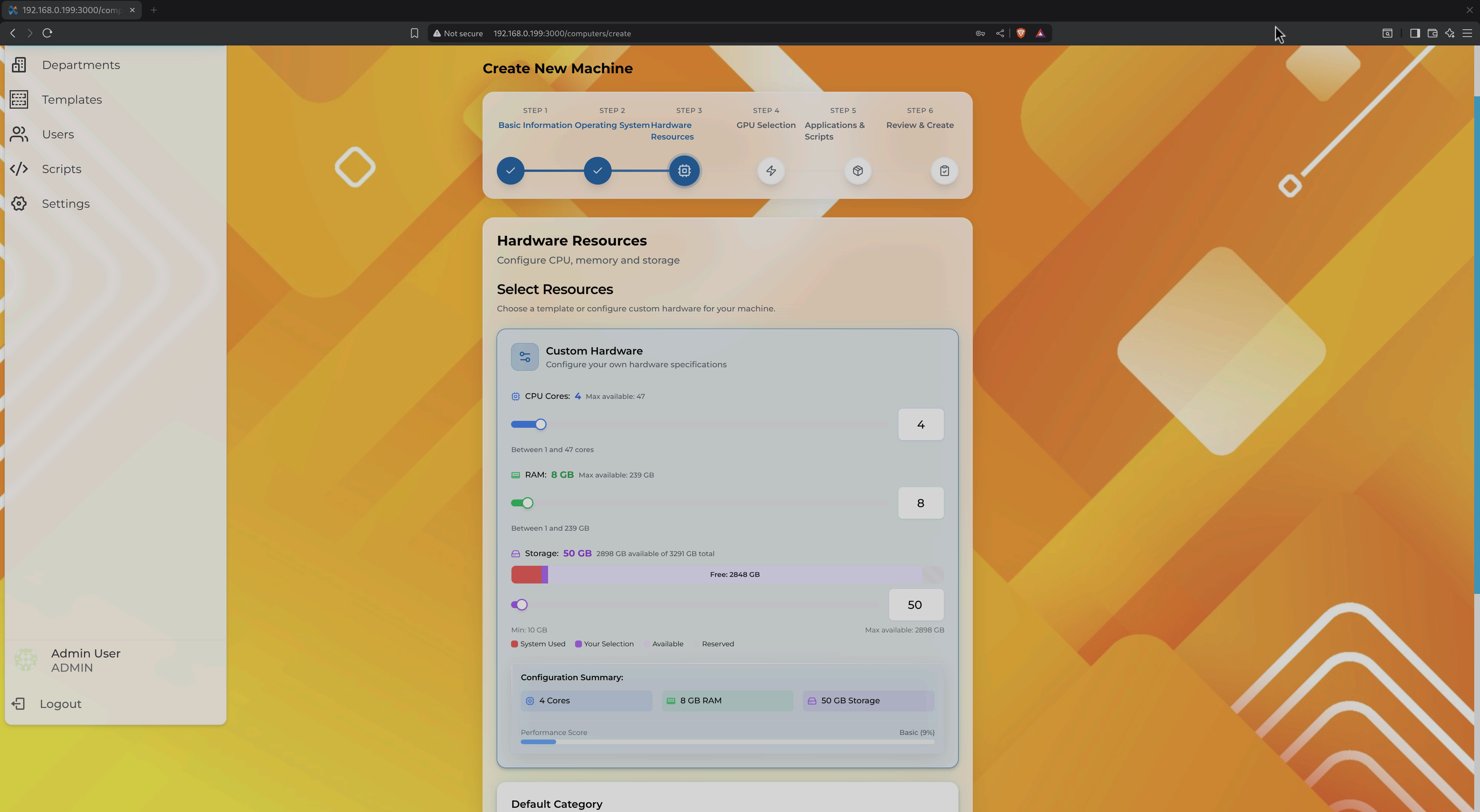
- CPU cores with performance/standard modes
- Memory allocation with visual warnings
- Storage configuration with free space indicators
- Real-time configuration summary
Templates: Pre-optimized configurations for common workloads
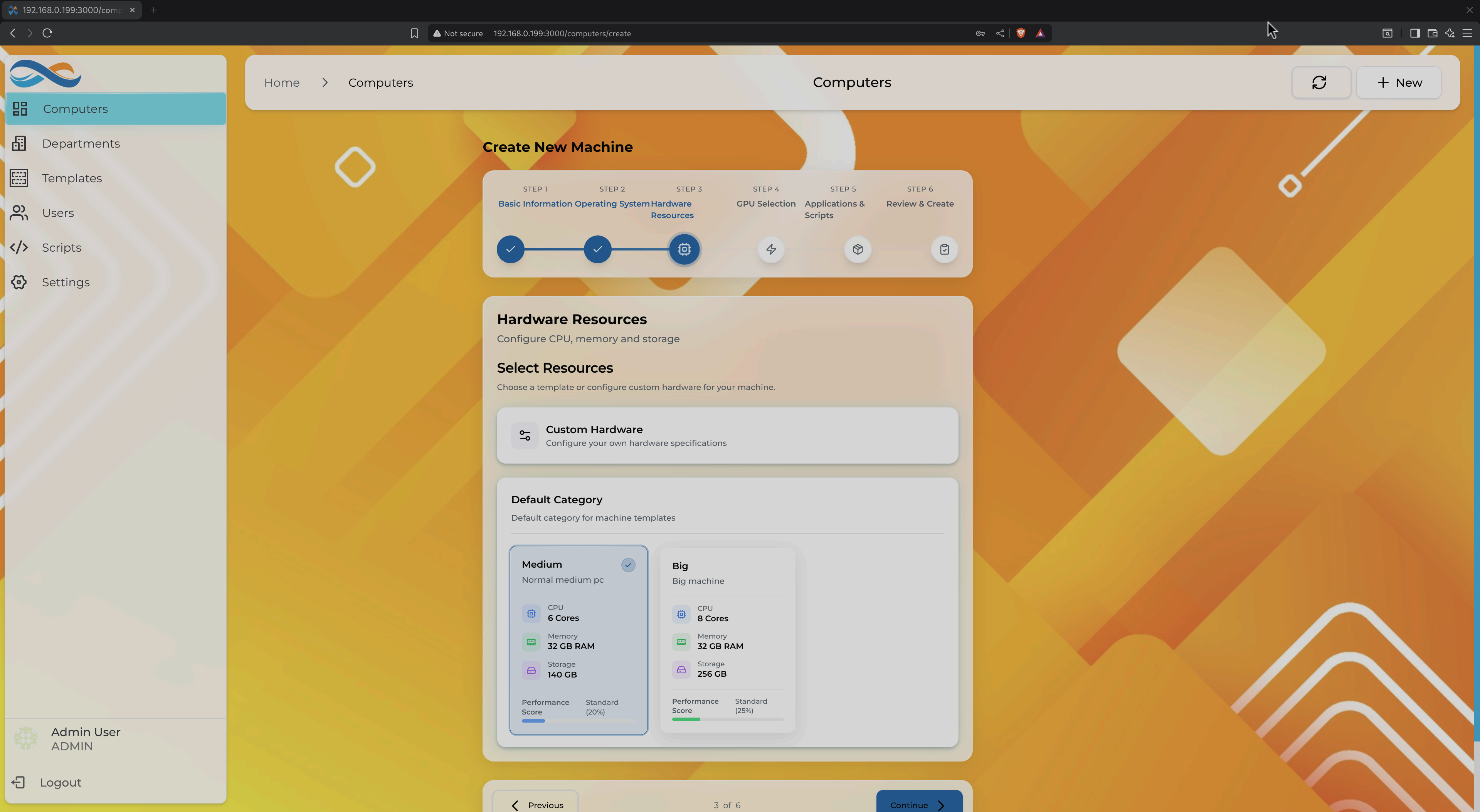
Choose from templates like:
- Medium: General-purpose workloads (4 cores, 8GB RAM)
- Big: Resource-intensive applications (8 cores, 16GB RAM)
Templates can be customized by administrators to match your organization's standards.
Step 4: GPU Passthrough (Optional)
Need graphics performance? Select a dedicated GPU with a single click—no manual PCI device configuration required.
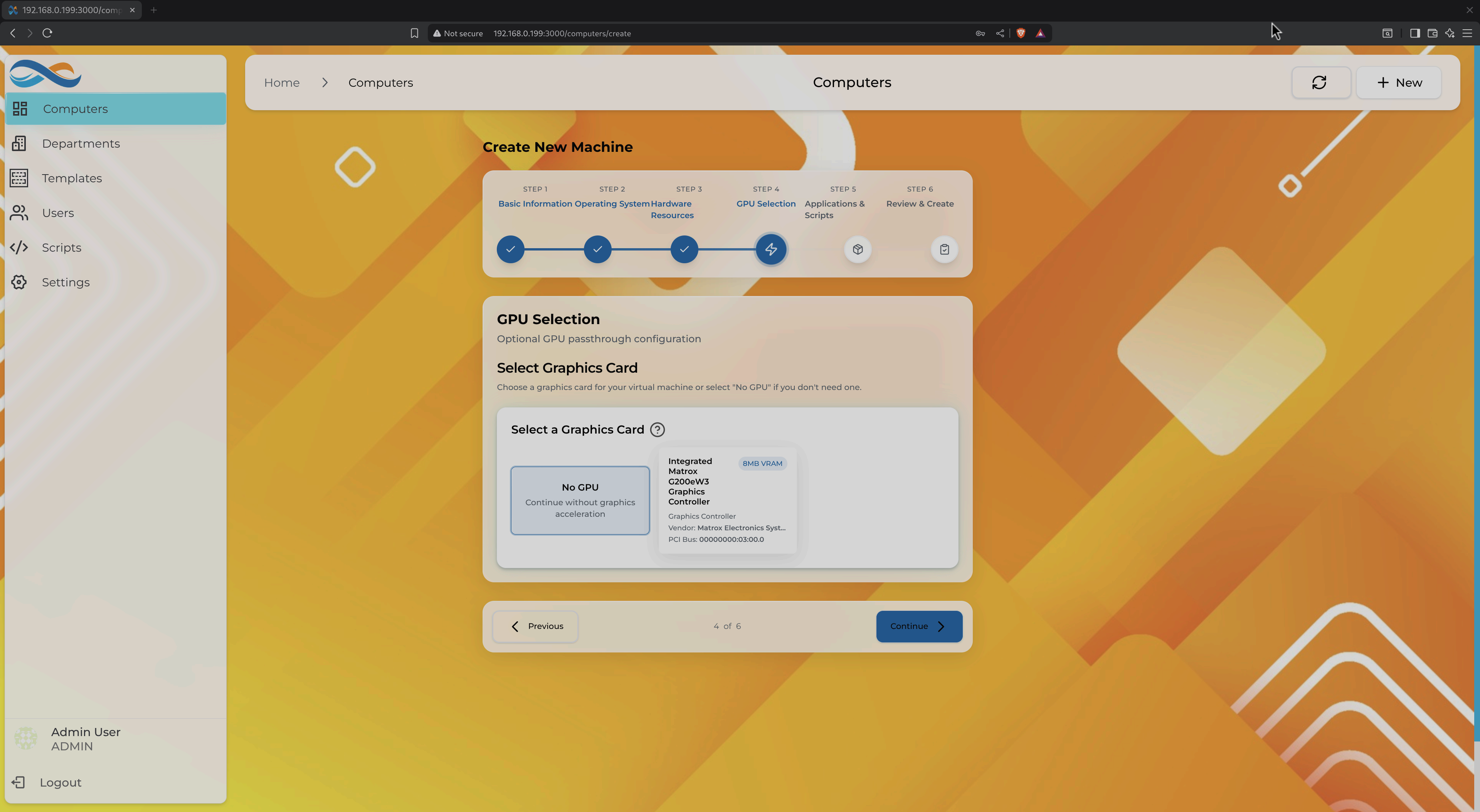
- No GPU: Standard virtual graphics (QXL/VirtIO)
- Dedicated GPU: Full PCI passthrough for gaming, CAD, or ML workloads
Infinibay automatically:
- Detects available GPUs
- Configures IOMMU groups
- Handles driver unbinding
- Sets up proper VFIO bindings
Note: GPU passthrough requires VT-d/AMD-Vi support and proper IOMMU configuration on the host.
Automated OS Installation
Infinibay uses unattended installation to fully automate OS setup. No need to click through installation wizards or manually configure partitions.
What Gets Automated?
- Partitioning: Automatic disk layout optimized for the selected OS
- User Creation: Uses credentials from Step 1
- Network Configuration: DHCP with automatic DNS
- Drivers: VirtIO drivers pre-installed (Windows) or kernel modules (Linux)
- Updates: Optional first-boot update installation
Supported Automation
| Operating System | Automation Method | Status |
|---|---|---|
| Windows 10/11 | Autounattend.xml | ✓ Full |
| Ubuntu 20.04+ | Cloud-init | ✓ Full |
| Fedora 38+ | Kickstart | ✓ Full |
Installation typically completes in 10-20 minutes depending on OS and hardware.
Application Pre-Installation
Skip the tedious post-installation setup. Select applications during VM creation and they'll be ready when the OS boots.
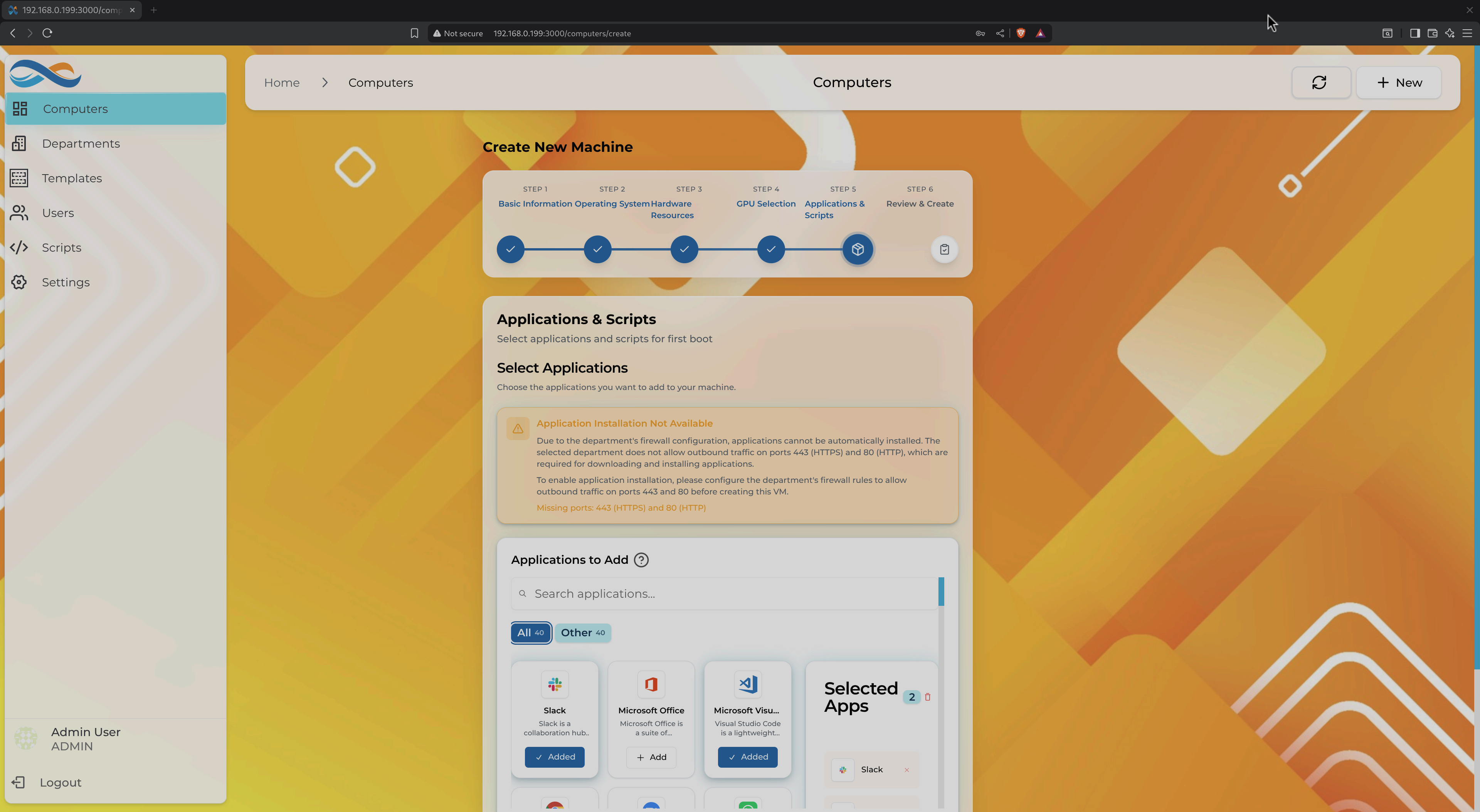
Available Applications
Applications are categorized for easy discovery:
- Development: VS Code, Git, Docker, Node.js
- Office: Microsoft Office, LibreOffice
- Communication: Slack, Microsoft Teams, Zoom
- Utilities: 7-Zip, VLC, Chrome, Firefox
How It Works
Applications are installed through:
- Windows: Chocolatey package manager (silent installation)
- Linux: Native package managers (apt, dnf) + Flatpak
Firewall Auto-Configuration: When you select applications like "Web Server" or "Database", Infinibay automatically suggests firewall rules for the department. You can review and approve these before the VM starts.
Warning: Application installation is not available if the department's firewall blocks required ports (HTTP/HTTPS for package downloads). Configure firewall rules first or use the "Override Department" flag.
Selected Apps Panel
Track your selections with the live summary:
- Real-time count of selected applications
- Category breakdown
- One-click removal
Review & Create
Before finalizing, review the complete configuration in a single summary view.
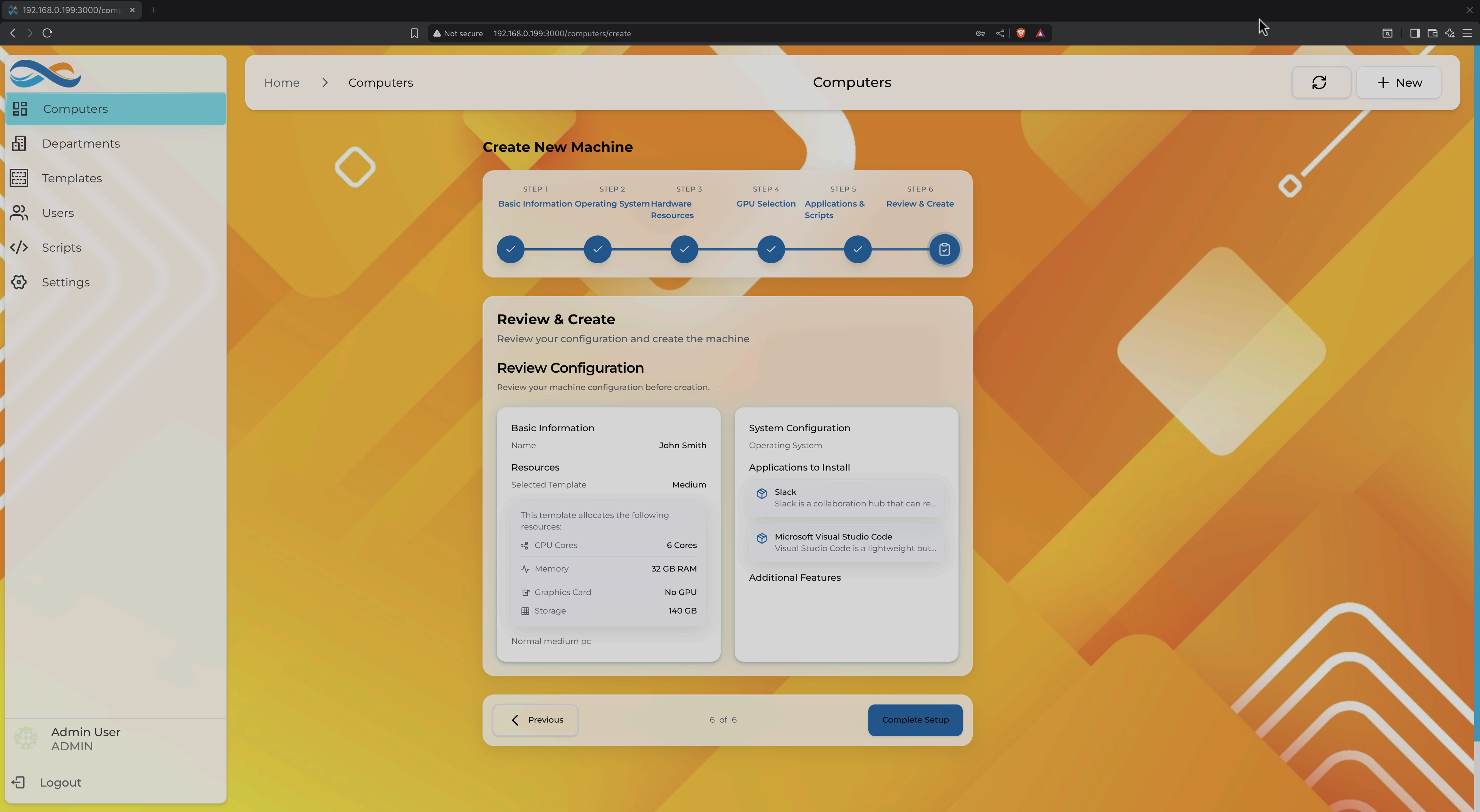
System Configuration Summary:
- Operating system and version
- Applications to install (with descriptions)
Basic Information:
- Machine name and department
- User credentials (password hidden)
Resources Allocated:
- CPU cores and topology
- Memory allocation
- Storage capacity
- Graphics configuration (GPU if selected)
What Happens After "Complete Setup"?
- VM Creation: Libvirt domain XML generated and registered
- Storage Allocation: Disk image created (qcow2 format)
- OS Installation: Unattended installation begins automatically
- Application Setup: Selected apps installed post-OS setup
- First Boot: VM starts with everything configured and ready
Total time: 15-30 minutes for a fully configured, production-ready machine.
Hardware Templates
Administrators can create reusable hardware templates to standardize VM configurations across the organization.
Template Management
Templates are accessible from the Templates page in the sidebar:
- Default Category: Pre-configured templates (Medium, Big, etc.)
- Custom Templates: Organization-specific configurations
- Template Inheritance: Base templates can be customized per department
Creating Custom Templates
Templates can be created from:
- Scratch: Define CPU, memory, storage settings manually
- Department Defaults (Planned): Set standard configs per team
- Clone from VM (Planned): Copy hardware configuration from existing VMs
Template Features
- Resource Limits: Enforce minimum/maximum allocations
- GPU Policies: Require or prohibit GPU passthrough
- Storage Quotas: Set disk size limits
- Performance Profiles: Pre-configure CPU pinning, NUMA topology
Best Practice: Create templates for common use cases (Developer Workstation, Database Server, Build Agent) to ensure consistency and speed up deployments.
Key Benefits
- Speed: Create production-ready VMs in 15-30 minutes instead of hours
- Consistency: Templates and automation eliminate configuration drift
- Simplicity: Guided wizards hide complexity without sacrificing control
- Zero Manual Configuration: No XML editing, no command-line tools required
- Department Integration: VMs inherit firewall rules and security policies automatically
Related Documentation
- Organization & Security - Department management and firewall rules
- Advanced Features - GPU passthrough details, scripts, and customization
- Backend: Unattended Installation - Technical details of OS automation
- Backend: XML Generation - How libvirt domain XML is generated