Organization & Security
Department-based organization, intelligent firewall management, and automated security recommendations
Organization & Security
Infinibay organizes virtual machines by departments and automatically applies security policies, firewall rules, and resource quotas. No need for complex network segmentation or manual iptables configuration.
Department-Based Organization
Departments are the primary organizational unit in Infinibay. They group related VMs, inherit security policies, and simplify resource management.
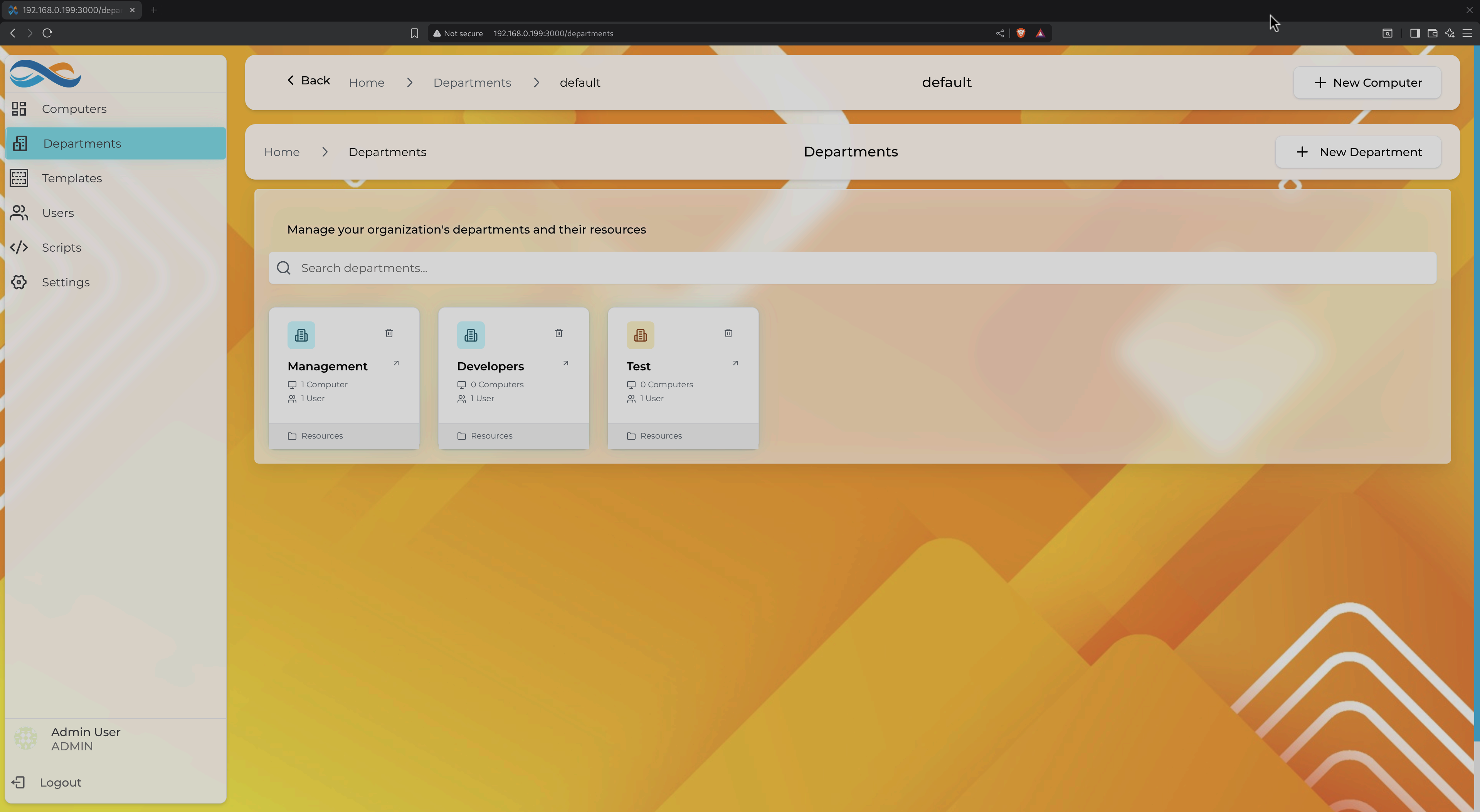
Overview of all departments with VM counts, users, and resource summaries
Why Departments?
Instead of managing individual VMs in isolation, departments provide:
- Logical Grouping: Organize VMs by team, project, or function (e.g., "Developers", "Marketing", "Test Environment")
- Inherited Security: Firewall rules and network policies apply to all VMs in the department automatically
- Resource Quotas (Planned): Set limits on total CPU, memory, and storage per department
- Access Control (Planned): Users restricted to managing only their department's VMs
Creating Departments
Departments are created from the Departments page:
- Click "New Department"
- Provide a name and optional description
- Select an icon to visually distinguish departments
- Configure default firewall rules (optional)
New VMs automatically inherit the department's firewall configuration when created.
Department Features
Each department card shows:
- Total Computers: Number of VMs in the department
- Users: Number of users with access
- Resources: Quick view of allocated CPU, memory, storage
Click any department to view:
- Computers Tab: All VMs with status indicators
- Security Tab: Firewall rules and security groups
- Scripts Tab: Department-specific automation scripts

Individual department view showing VMs, security settings, and scripts
Firewall Management
Infinibay's firewall system combines simplicity with power. Use pre-configured service presets for common scenarios, or create custom rules with granular control.
Service Presets
Service presets are one-click firewall configurations for common services:
- Web Server: Allow HTTP (80) and HTTPS (443)
- SSH: Allow secure shell access (22)
- RDP: Enable Remote Desktop for Windows VMs (3389)
- Database: PostgreSQL, MySQL, MongoDB, Redis
- Development Tools: VS Code Server, Node.js debugger
- Custom Services: Define your own presets with multiple ports
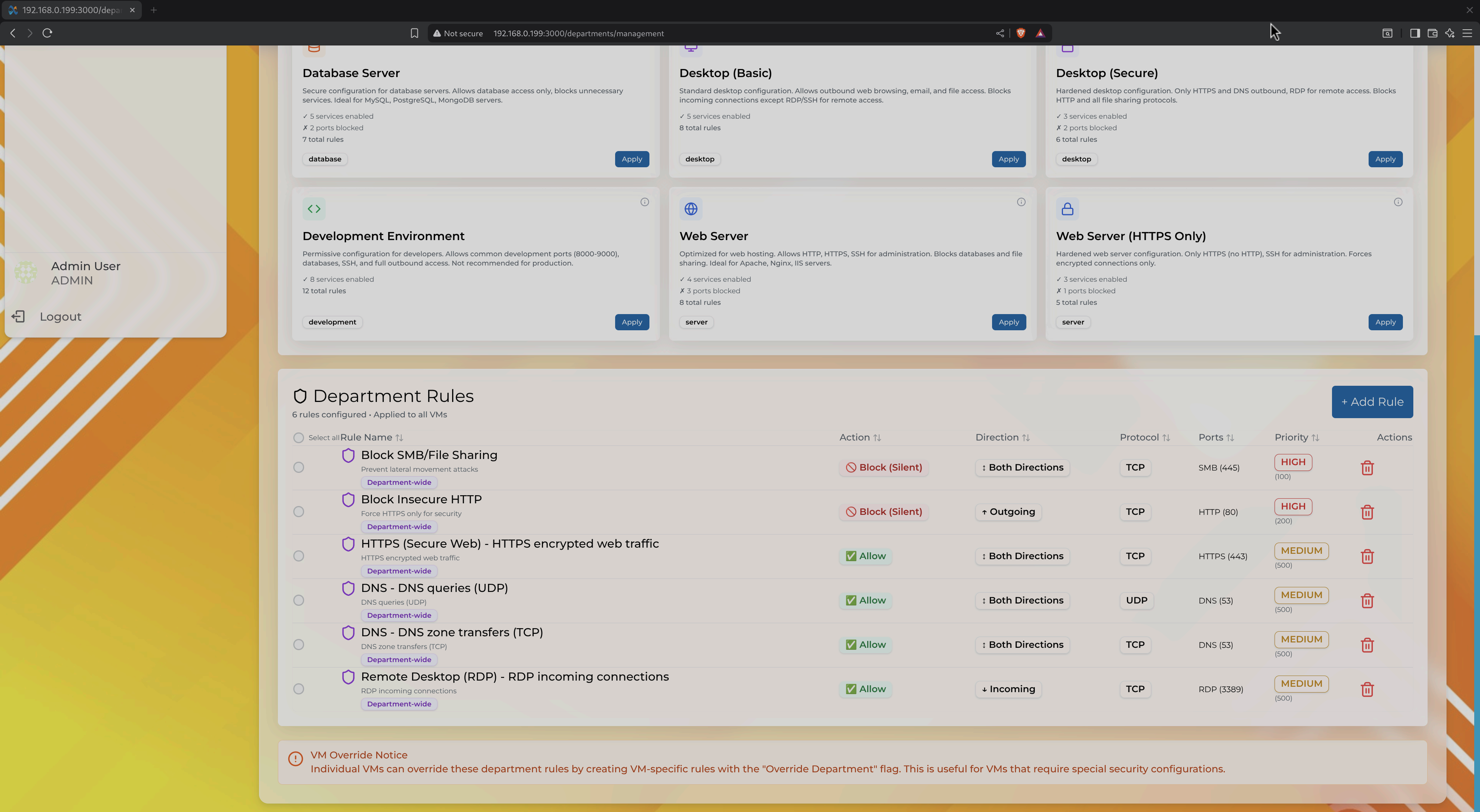
Firewall rules overview showing service presets and custom rules with risk indicators
Rule Types
Infinibay supports two types of firewall rules:
- Department Rules: Apply to ALL VMs in the department
- VM-Specific Rules: Override or extend department rules for individual machines
Department Rules (Example Above):
- Block Insecure HTTP: Blocks port 80 (Both Directions, HIGH priority)
- HTTPS (Secure Web): Allows encrypted HTTPS (443) traffic
- DNS: Allow DNS queries (UDP 53)
- Remote Desktop (RDP): Allow incoming RDP connections
Rule Attributes
Each rule displays:
- Action: ✅ Allow or 🚫 Block
- Direction: Incoming, Outgoing, or Both
- Protocol: TCP, UDP, ICMP
- Ports: Service port numbers
- Priority: HIGH, MEDIUM, LOW (determines rule precedence)
- Risk Level: Visual indicator of security impact
Creating Firewall Rules
Click "+ Add Rule" to open the rule creation dialog:
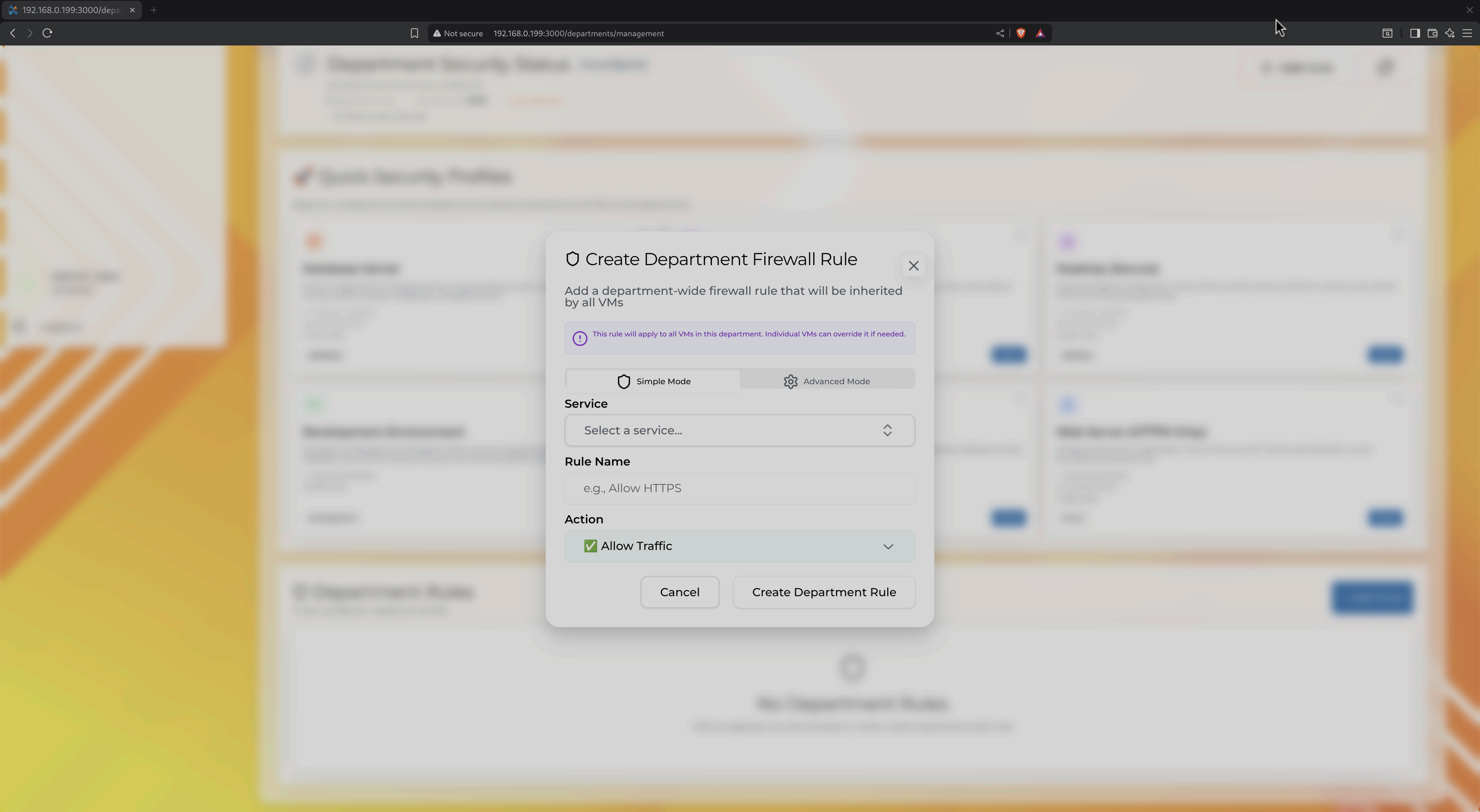
Modal for creating service-based firewall rules
Simple Mode (Service Presets)
- Select a service from the dropdown (e.g., "Web Server", "SSH")
- Provide a rule name (auto-generated from service)
- Choose action (Allow/Block traffic)
- Click "Create Department Rule"
The system automatically:
- Configures correct ports and protocols
- Sets appropriate priorities
- Applies risk assessment
- Updates all VMs in the department
Advanced Mode
For custom rules, switch to Advanced Mode to manually specify:
- Source/destination IP ranges
- Custom port ranges
- Protocol-specific options (TCP flags, ICMP types)
- Connection tracking options
Firewall Rule Inheritance
VMs inherit department rules but can override them:
Department Rule: Block HTTP (port 80)
   ├─ VM "web-server-01": Allow HTTP (VM-specific override)
   ├─ VM "database-01": Inherits block (no override)
   └─ VM "dev-machine": Inherits block (no override)
Override Behavior:
- VM-specific rules always take precedence
- Department rules apply to VMs without overrides
- Changing a department rule updates all inheriting VMs instantly
VM Override Warning
When a VM has rules that conflict with department defaults, Infinibay displays a warning:
VM Override Notice
Individual VMs can override these department rules by creating VM-specific rules with the "Override Department" flag. This is useful for VMs that require special security configurations.
Use overrides sparingly—they reduce consistency and make auditing harder.
Intelligent Firewall Features
Infinibay's firewall goes beyond simple allow/block rules with intelligent features:
1. Automatic Risk Assessment
Every rule is automatically analyzed for security risks:
- HIGH Risk: Allows insecure protocols (HTTP, Telnet, FTP) or exposes sensitive services
- MEDIUM Risk: Broad port ranges or bidirectional traffic
- LOW Risk: Standard encrypted services (HTTPS, SSH) with specific ports
Risk indicators help administrators make informed decisions without being security experts.
2. Conflict Detection
When creating a rule, Infinibay checks for conflicts:
- Duplicate Rules: Warns if an identical rule already exists
- Contradictory Rules: Detects allow/block conflicts on same port
- Shadowed Rules: Identifies rules that will never match due to priority
Conflicts are highlighted with actionable suggestions (e.g., "Merge with existing rule #42").
3. Blocked Connection Tracking
Infinibay monitors and logs blocked connection attempts:
- Source IPs: Where blocked traffic originated
- Destination Ports: What services were targeted
- Frequency: How many attempts occurred
- Recommendations: Suggests creating rules if legitimate traffic is blocked
Access blocked connection logs from Department → Security → Blocked Connections.
4. Service Discovery
When creating a VM with applications (e.g., "Web Server", "Database"), Infinibay automatically:
- Detects required network ports
- Suggests firewall rules
- Prompts for approval before applying
Example:
Installing "PostgreSQL" requires:
  - Allow TCP 5432 (incoming)
  - Allow UDP 5353 (mDNS discovery)

Apply these rules to department "Developers"? [Yes] [No] [Customize]
Automated Recommendation System
Infinibay continuously monitors your infrastructure and provides proactive recommendations to improve performance, security, and resource utilization.
Recommendation Categories
1. Resource Warnings
Infinibay alerts you to resource constraints before they cause problems:
- Low Memory: VM has less than 10% free RAM
- High CPU Usage: Sustained >90% CPU usage for 10+ minutes
- Disk Space: Storage pool or VM disk >85% full
- Resource Contention: Multiple VMs competing for same CPU cores
Example Alert:
⚠️ Resource Warning: "web-server-01"

Memory usage at 94% (7.5 GB / 8 GB).
Recommendation: Increase memory allocation to 12 GB or investigate memory leaks.

[View Details]
2. Security Recommendations
The system analyzes firewall rules and network traffic to suggest security improvements:
- Unused Open Ports: Ports allowed by firewall but never accessed
- Insecure Protocols: HTTP, FTP, Telnet detected in rules
- Overly Permissive Rules: Rules allowing all IPs or wide port ranges
- Missing Security Updates: OS patches available for VMs
Example Alert:
🔒 Security Issue: Department "Marketing"

Firewall rule "Allow HTTP" permits insecure web traffic.
6 VMs are exposed to potential man-in-the-middle attacks.

Recommendation: Switch to HTTPS-only (port 443) and block HTTP (port 80).

[View Details] [Configure Firewall]
3. Blocked Connection Insights
When Infinibay detects legitimate traffic being blocked:
- Pattern Detection: Identifies repeated blocked connections from same source
- Service Identification: Recognizes common services by port numbers
- Rule Suggestions: Proposes new firewall rules to allow traffic
Example Alert:
🔥 Blocked Traffic Detected: "database-vm-02"

PostgreSQL connections (port 5432) from 192.168.1.50 blocked 47 times in last hour.

This appears to be legitimate application traffic from "app-server-01".

Recommendation: Add rule to allow TCP 5432 from 192.168.1.50.

[Configure Port 5432] [View Firewall Rules]
4. Application Performance
Monitors application-specific metrics and suggests optimizations:
- Slow Database Queries: Detected in PostgreSQL/MySQL logs
- High Memory Apps: Applications consuming excessive RAM
- Startup Failures: Services failing to start after reboot
- Port Conflicts: Multiple apps trying to bind same port
Example Alert:
⚡ Performance Issue: "dev-machine-03"

VS Code Server using 6 GB RAM (75% of VM allocation).

Recommendation: Disable unnecessary extensions or increase VM memory to 10 GB.

[View Details] [View Processes]
Recommendation Actions
Each recommendation provides interactive buttons:
- View Details: Opens detailed explanation and guidance steps
- View List: Shows structured data (updates, threats, blocked ports, etc.)
- Configure: Navigate to relevant settings (e.g., Firewall tab)
- Auto-Fix (Coming Soon): Automatically apply suggested changes
- Dismiss (Coming Soon): Hide recommendations or mark as resolved
Recommendation Dashboard
Access all recommendations from:
- Dashboard: Global view of all alerts across departments
- Department View: Recommendations specific to one department
- VM Details: Machine-specific alerts and suggestions
Filter by:
- Severity: Critical, High, Medium, Low
- Category: Resources, Security, Performance, Networking
- Type: Disk Space, CPU, Memory, Security, Updates, etc.
Firewall Performance
Infinibay's firewall uses nftables (Linux) with Redis caching for optimal performance:
- Rule Application: <100ms for individual VMs, <2s for department-wide changes
- Cache Hit Rate: 98% for frequently accessed rules (Redis)
- Scalability: Tested with 500+ VMs and 1000+ firewall rules
- Graceful Degradation: If Redis is unavailable, falls back to direct nftables queries
Security Best Practices
1. Use Department Rules for Defaults
Define common security policies at the department level:
- Block all incoming traffic by default
- Allow only necessary outbound traffic (HTTP/HTTPS, DNS)
- Enable logging for blocked connections
2. Minimize VM-Specific Overrides
Overrides fragment security policies and make auditing harder. Instead:
- Create sub-departments for VMs with special requirements
- Use service presets to standardize common exceptions
- Document why overrides are necessary (use rule descriptions)
3. Regular Security Audits
Review firewall rules quarterly:
- Remove unused rules (check "Last Matched" timestamp)
- Tighten overly permissive rules
- Update service presets as infrastructure evolves
Infinibay provides Firewall Audit Reports under Department → Security → Audit.
4. Enable Recommendation Alerts
Configure notification preferences in Settings:
- Email alerts for High and Critical recommendations
- Weekly digests for Medium and Low issues
- Slack/Teams integration for real-time alerts
Related Documentation
- VM Lifecycle Management - Creating VMs and department assignment
- Advanced Features - Scripts for automated firewall updates
- Backend: Firewall System - Technical implementation details
- Backend: Recommendation System - How recommendations are generated